Last Updated on March 3, 2026 by Prabhakar A
In today’s digital age, web accessibility is no longer just a nice-to-have feature—it’s a necessity. Creating inclusive websites ensures that everyone, regardless of their abilities, can access and interact with online content effectively. This comprehensive guide will walk you through the key principles and actionable steps for designing accessible websites that cater to a diverse user base, ultimately enhancing usability and expanding your reach.
From understanding the legal and ethical implications to implementing practical design strategies, we’ll cover everything you need to know to make your website accessible in 2026 and beyond. By prioritizing accessibility, you not only comply with regulations but also unlock significant benefits for your business, including improved SEO and a stronger brand reputation. Let’s dive in and explore the world of web design accessibility.
Table of Contents
Why Web Accessibility Matters in 2026: Beyond Compliance
The Growing Legal Landscape of Web Accessibility (ADA, WCAG, and Emerging Standards)
Web accessibility isn’t just about being socially responsible; it’s increasingly a legal requirement. In many countries, including the United States with the Americans with Disabilities Act (ADA), websites are considered places of public accommodation and must be accessible to people with disabilities. The Web Content Accessibility Guidelines (WCAG) serve as the international standard for web accessibility, providing a set of guidelines for making web content more accessible to a wider range of people with disabilities, including blindness and low vision, deafness and hearing loss, learning disabilities, cognitive limitations, limited movement, speech disabilities, photosensitivity and combinations of these. As of 2026, several lawsuits have been filed against organizations with inaccessible websites, underscoring the importance of compliance. Staying updated on evolving standards, like potential future updates to WCAG, is crucial to avoid legal repercussions and ensure long-term accessibility. Always check the official W3C’s WCAG guidelines for the most up-to-date information.
Ethical Considerations: Reaching a Wider Audience and Promoting Digital Inclusion
Beyond legal obligations, web accessibility aligns with ethical principles of fairness and inclusion. Every individual deserves equal access to information and opportunities online. Designing accessible websites ensures that people with disabilities can participate fully in the digital world, accessing education, employment, entertainment, and essential services. This promotes social equity and empowers individuals to lead more independent and fulfilling lives. Ignoring accessibility creates barriers that exclude a significant portion of the population, perpetuating digital divides. Creating a website with accessibility in mind from the outset reflects a commitment to inclusivity and social responsibility, fostering a positive brand image and building trust with your audience.
The Business Case: Improved SEO, Usability, and Brand Reputation
Investing in web accessibility isn’t just the right thing to do; it’s also good for business. Accessible websites often have better SEO performance, as search engine crawlers can easily understand and index the content. Clear, well-structured content, semantic HTML, and descriptive alt text all contribute to improved search rankings. Furthermore, accessible websites tend to be more usable for everyone, not just people with disabilities. Improved navigation, clear typography, and intuitive design enhance the overall user experience, leading to increased engagement and conversions. Embracing accessibility also boosts your brand reputation, demonstrating a commitment to social responsibility and inclusivity, which can attract customers, partners, and employees who value these principles. Thinking about how accessibility overlaps with web design for conversions is a wise move.
Understanding the Core Principles of WCAG (Web Content Accessibility Guidelines)
POUR: Perceivable, Operable, Understandable, and Robust – A Quick Overview
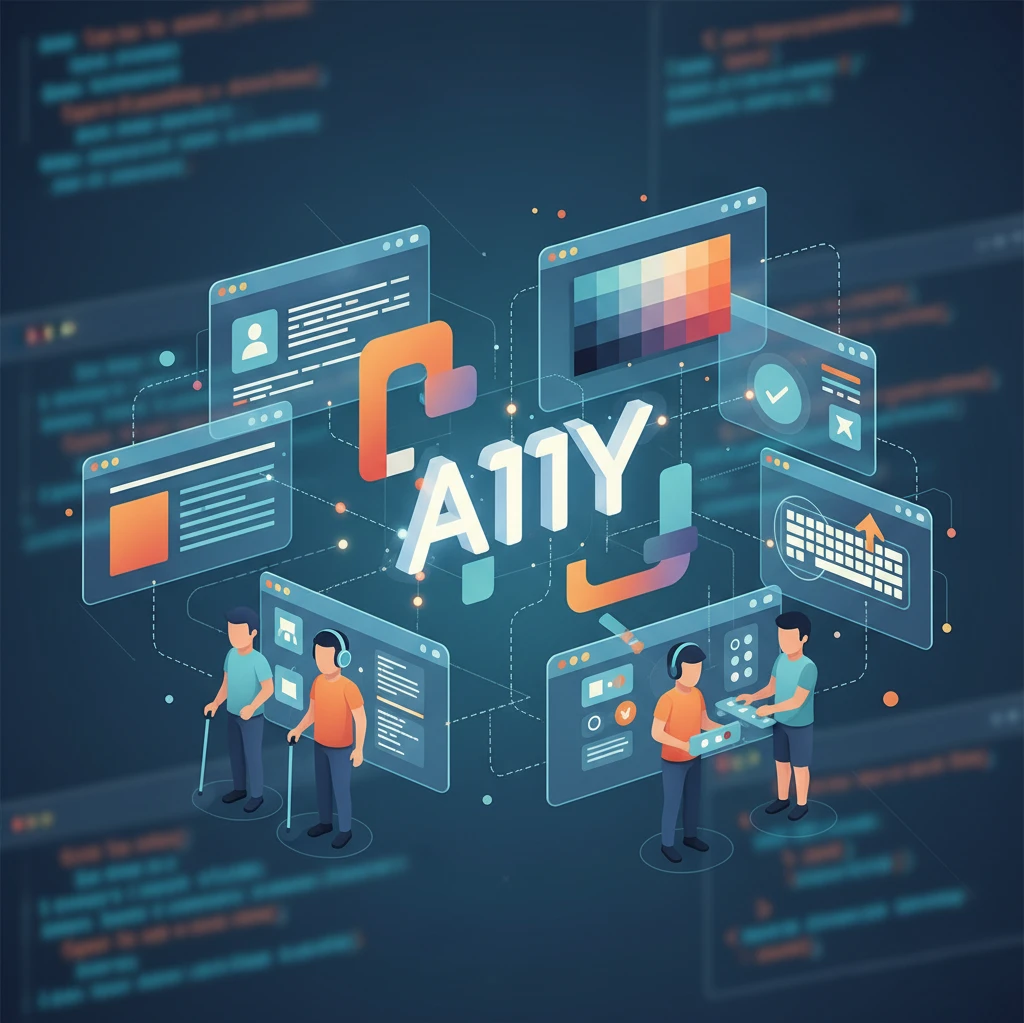
WCAG is built upon four core principles, often remembered by the acronym POUR: Perceivable, Operable, Understandable, and Robust. Perceivable means that users must be able to perceive the information being presented (it can’t be invisible to all of their senses). This includes providing text alternatives for non-text content, captions for videos, and ensuring sufficient color contrast. Operable means that users must be able to operate the interface (the interface cannot require interaction that a user cannot perform). This involves making all functionality available from a keyboard, providing sufficient time for users to read and use the content, and avoiding content that could cause seizures. Understandable means that users must be able to understand the information as well as the operation of the user interface (the content or operation cannot be beyond their understanding). This includes making text readable and understandable, providing predictable navigation, and helping users avoid and correct mistakes. Finally, Robust means that users must be able to access the content using a wide range of user agents, including assistive technologies. This involves using standard technologies and following coding best practices. Ignoring just one part of POUR can result in a bad user experience.
Levels of Conformance: A, AA, and AAA – What You Need to Know
WCAG defines three levels of conformance: A, AA, and AAA. Level A represents the most basic level of accessibility and addresses the most critical barriers for users with disabilities. Achieving Level A conformance is often considered the minimum acceptable standard. Level AA includes all Level A criteria plus additional requirements that address more common accessibility barriers. Level AA is widely regarded as the target level for most websites, balancing accessibility with practicality. Level AAA is the highest level of conformance and includes the most stringent requirements. While striving for Level AAA is admirable, it may not always be feasible or practical for all websites due to its extensive demands. It’s important to note that not all Level AAA success criteria can be universally satisfied for all types of content. Organizations often aim for Level AA to strike a balance between accessibility and implementation feasibility. Many legal standards call for Level AA conformance.
WCAG 2.2 vs WCAG 3.0: Preparing for Future Updates
Web accessibility standards are continuously evolving to address emerging technologies and user needs. WCAG 2.2, released in 2023, introduced several new success criteria to improve accessibility for users with cognitive and learning disabilities, as well as users with low vision. Looking ahead, WCAG 3.0 is currently under development and represents a significant shift in approach. Instead of focusing solely on pass/fail criteria, WCAG 3.0 aims to provide a more holistic and flexible framework for assessing accessibility, incorporating a wider range of user needs and contexts. It will also introduce the concept of “outcomes,” which focus on the actual user experience rather than just technical compliance. While WCAG 2.2 is the current standard as of 2026, it’s important to stay informed about the progress of WCAG 3.0 and prepare for its eventual adoption. Understanding how AI is impacting digital marketing and content creation will be very important. This may involve changes to how content is consumed by users using assistive technology.
Essential Web Design Accessibility Checklist: Implement These First
Semantic HTML: Using Headings, Lists, and Paragraphs Correctly
Semantic HTML is the foundation of web accessibility. Using HTML elements according to their intended purpose provides structure and meaning to your content, making it easier for assistive technologies to understand and navigate. Employ proper heading tags (<h1> to <h6>) to create a logical hierarchy, reflecting the importance of different sections. Use <ul> and <ol> elements for lists, ensuring that list items are correctly formatted with <li> tags. Structure paragraphs with <p> tags to create readable blocks of text. Avoid using heading tags for styling purposes only; instead, use CSS to format your headings. Similarly, don’t use lists for non-list content. Proper semantic HTML not only improves accessibility but also enhances SEO and overall code maintainability. Poor semantic structure can make it very difficult for users of assistive technology to navigate your website.
Alternative Text for Images: Writing Effective Descriptions
Alternative text (alt text) is crucial for making images accessible to users who cannot see them. The alt attribute of the <img> tag provides a text description of the image’s content and purpose. Write concise and informative alt text that accurately conveys the meaning of the image in context. For purely decorative images, use an empty alt attribute (alt="") to signal to assistive technologies that the image can be safely ignored. Avoid using phrases like “image of” or “picture of” in your alt text, as screen readers will automatically announce the element as an image. If an image contains important text, include that text in the alt text. Complex images, such as charts or graphs, may require more detailed descriptions provided in the surrounding text or a separate long description. Ignoring alt text or providing unhelpful descriptions can render images completely inaccessible to visually impaired users.
Keyboard Navigation: Ensuring All Functionality is Accessible via Keyboard
Many users, including those with motor impairments, rely on keyboard navigation to interact with websites. Ensuring that all website functionality is accessible via keyboard is essential for accessibility. Users should be able to navigate through all interactive elements, such as links, buttons, and form fields, using the Tab key. Focus indicators should be clearly visible, indicating which element is currently selected. Avoid trapping users in specific sections of the page, preventing them from navigating away. Provide keyboard shortcuts for frequently used actions. Test your website thoroughly using only the keyboard to ensure that all functionality is accessible. Inaccessible keyboard navigation can completely prevent users from completing tasks or accessing content, rendering your website unusable for a significant portion of the population. Remembering the principles of user-friendly web design principles such as intuitive navigation is crucial.
Color Contrast and Legibility: Making Your Content Readable for Everyone
Understanding Color Contrast Ratios (4.5:1, 3:1, 7:1)
Color contrast is a critical aspect of web accessibility, particularly for users with low vision or color blindness. Insufficient color contrast between text and its background can make content difficult or impossible to read. WCAG defines specific color contrast ratios that must be met to ensure accessibility. For standard text, a contrast ratio of at least 4.5:1 is required. For large text (18pt or 14pt bold) and graphical objects, a contrast ratio of at least 3:1 is required. For enhanced accessibility, a contrast ratio of 7:1 is recommended for standard text. These ratios are calculated based on the relative luminance of the text and background colors. Failing to meet these ratios can exclude a significant number of users and violate accessibility guidelines.
Tools for Checking Color Contrast (and How to Use Them)
Numerous tools are available to help you check color contrast ratios and ensure accessibility. Online contrast checkers, such as the WebAIM Contrast Checker and the Accessible Colors tool, allow you to input foreground and background colors and calculate the contrast ratio. Browser extensions, such as the WCAG Color Contrast Checker, provide real-time feedback on color contrast as you design your website. These tools typically indicate whether the contrast ratio meets the WCAG requirements for different levels of conformance. To use these tools effectively, select your foreground and background colors using a color picker or by entering hexadecimal color codes. Verify that the contrast ratio meets the minimum requirements for the intended text size and weight. Address any contrast issues by adjusting the colors until the required ratio is achieved. Regular color contrast checks should be incorporated into your web design workflow to prevent accessibility barriers.
Avoiding Color as the Sole Indicator of Meaning
Relying solely on color to convey meaning can create significant accessibility barriers for users who are colorblind or have low vision. Color blindness affects a significant portion of the population, making it difficult or impossible for them to distinguish between certain colors. When using color to indicate status, importance, or other information, always provide an alternative visual cue, such as text, icons, or patterns. For example, instead of using red text to indicate an error, use a combination of red text and an error icon. When using color in charts or graphs, use different patterns or textures in addition to color to differentiate between data sets. This ensures that all users can understand the information being presented, regardless of their color vision. In general, it’s best to think about ways to represent information, and then use color to enhance that representation, not to be the sole element providing the important information. This may also be enhanced by following principles discussed in data-driven decisions, which are essential for effective user experiences.
Accessible Forms: Guidelines for Usable and Inclusive Forms
Providing Clear Labels and Instructions
Accessible forms are crucial for user experience, ensuring everyone, regardless of ability, can interact with your website effectively. The foundation of accessible forms lies in clear, concise labeling. Labels should be explicitly associated with their corresponding input fields using the <label> element and the for attribute. The for attribute’s value must match the id attribute of the input field. This association is vital for screen reader users, as it provides context about the expected input.
Instructions should be placed *before* the input field, not after, to ensure users encounter them before they need to provide the information. Keep instructions brief and to the point. For example, instead of “Enter your full name,” use “Full Name (First, Last).” When dealing with complex form fields, consider providing example input formats. For instance, for a date field, use “MM/DD/YYYY” as a placeholder or adjacent example. However, be cautious using placeholders as replacements for labels, as they disappear when the user starts typing, potentially creating confusion. The color contrast between labels and the background must meet WCAG standards. A helpful tool is the WebAIM Contrast Checker. Poor color contrast creates challenges for users with low vision.
Pitfalls to avoid include using vague labels (e.g., “Field 1”), placing labels too far from the input fields, and failing to provide instructions for required fields. Indicating required fields with an asterisk (*) and providing a legend explaining the asterisk is an effective approach. For complex forms, consider breaking them into smaller, more manageable sections. This aligns with principles of web design that focuses on user-friendliness. Finally, remember to test your forms with screen readers to ensure the labeling and instructions are conveyed accurately.
Handling Errors and Providing Helpful Feedback
Error handling is a critical aspect of form accessibility. When users make mistakes, it’s essential to provide clear, specific, and helpful feedback. Generic error messages like “Invalid Input” are unhelpful. Instead, tell the user exactly what went wrong and how to fix it. For example, “Please enter a valid email address in the format name@example.com.” Error messages should appear near the field in error, preferably directly below it.
Use both visual and textual cues to indicate errors. Color-coding (e.g., using red to highlight the field in error) can be effective, but it should not be the only indicator. Provide a text-based description of the error. For users with screen readers, make sure error messages are announced immediately when the error occurs. This can be achieved using ARIA live regions (more on this later). In addition to immediate feedback, provide a summary of all errors at the top of the form, with links to the corresponding fields. This is especially useful for lengthy forms.
Avoid relying solely on client-side validation. Always perform server-side validation as well. Client-side validation provides immediate feedback, but it can be bypassed. Server-side validation ensures data integrity. A common pitfall is to not provide enough time for users to read and understand error messages, especially for time-sensitive forms. The message should persist until the user corrects the error or moves on to another field. Consider providing suggestions for corrections. For example, if a user enters an incorrect date format, suggest the correct format and provide a calendar widget.
Using ARIA Attributes for Enhanced Accessibility
ARIA (Accessible Rich Internet Applications) attributes can significantly enhance form accessibility, particularly for complex or custom form elements. The aria-required attribute indicates that a field is required. While using the HTML5 required attribute is preferred, ARIA provides a fallback for older browsers or custom elements. The aria-invalid attribute indicates that a field contains invalid data. This attribute should be dynamically set to “true” when an error occurs and removed when the error is corrected. For example: <input type="email" id="email" aria-required="true" aria-invalid="true">. The aria-describedby attribute associates a field with descriptive text. This is useful for providing additional context or instructions. The value of aria-describedby should match the ID of the descriptive text element.
Example: <label for="zip">Zip Code:</label> <input type="text" id="zip" aria-describedby="zip-description"> <div id="zip-description">Enter a 5-digit or 9-digit zip code.</div>. Use ARIA sparingly and only when native HTML elements and attributes are insufficient. Overusing ARIA can create more problems than it solves, especially if used incorrectly. Screen readers rely on semantic HTML, and incorrect ARIA can override or conflict with the native semantics. Always test ARIA implementations thoroughly with screen readers and other assistive technologies.
A common pitfall is using ARIA to replicate functionality that already exists in HTML. For example, don’t use aria-label if a properly associated <label> element already exists. Also, avoid changing the default role of standard HTML elements unless absolutely necessary. For instance, don’t change the role of a <button> element unless you’re creating a custom button with significantly different behavior. Before applying ARIA, ask yourself: “Can I achieve the same result using standard HTML?” If the answer is yes, use HTML.
Multimedia Accessibility: Captioning Videos and Providing Transcripts
Why Captions Are Crucial for Accessibility (and SEO)
Captions are essential for making video content accessible to individuals who are deaf or hard of hearing. They provide a text-based representation of the audio, including spoken words and important sound effects. But the benefits extend beyond accessibility. Captions also improve the viewing experience for people watching videos in noisy environments or when they prefer not to listen to the audio. Furthermore, captions significantly boost SEO. Search engines can crawl and index the text in captions, making your video content more discoverable. Videos with captions often rank higher in search results.
Without captions, a significant portion of your audience is excluded from accessing and understanding your video content. This not only limits your reach but also potentially violates accessibility laws and guidelines, such as the Americans with Disabilities Act (ADA) in the United States and similar legislation in other countries. From an SEO perspective, failing to provide captions means missing out on a valuable opportunity to optimize your video content for search engines. Think of captions as metadata for your video, providing search engines with context and keywords to index. For educational content or tutorials, captions help reinforce learning by providing a visual aid that complements the audio.
A pitfall is to rely solely on auto-generated captions without reviewing and editing them for accuracy. Auto-generated captions often contain errors, especially with technical terms or proper names. These errors can lead to misunderstandings and a negative user experience. Ensure your video player supports captions and allows users to easily turn them on and off. The captions should be synchronized with the audio and displayed in a clear, readable font and color. Use a font size that is large enough to be easily read on different screen sizes and devices. Choose a font color and background color that provide sufficient contrast.
Creating Accurate and Synchronized Captions
Creating accurate and synchronized captions is a multi-step process. Start by transcribing the audio content of your video. You can do this manually or use transcription software. However, regardless of the method, always review and edit the transcript for accuracy. Pay close attention to technical terms, proper names, and any other potentially ambiguous words or phrases. Next, synchronize the captions with the audio. This involves adding timecodes to each line of text, indicating when it should appear and disappear on the screen.
There are several tools available for creating captions, including professional captioning services and software. Some video editing software also includes built-in captioning features. When synchronizing captions, ensure that they are displayed for a sufficient amount of time to be easily read. The reading speed should be comfortable for the average viewer. Avoid displaying too much text at once, as this can be overwhelming. Break up long sentences into shorter captions. Consider the placement of captions on the screen. Avoid placing them over important visual elements. The bottom of the screen is often the best location.
A common pitfall is to create captions that are too fast or too dense. Users need enough time to read and process the text. Another pitfall is to use inconsistent formatting. Maintain a consistent font, color, and size throughout the video. Always test your captions on different devices and browsers to ensure they display correctly. Get feedback from users, especially those who are deaf or hard of hearing, to identify any areas for improvement. Consider using a style guide for captioning to ensure consistency and accuracy across all your videos.
Transcripts vs. Captions: When to Use Each
While both transcripts and captions provide text-based alternatives to audio content, they serve different purposes and are used in different contexts. Captions are synchronized with the audio and displayed on the screen, providing a real-time text representation of the spoken words and important sound effects. Transcripts, on the other hand, are stand-alone text documents that provide a complete written record of the audio content. Transcripts are not synchronized with the audio and are typically presented as a separate file or on a separate page.
Captions are essential for making video content accessible to individuals who are deaf or hard of hearing. They allow viewers to follow along with the video in real-time. Transcripts are useful for a variety of purposes, including SEO, providing a searchable text version of the audio content, and allowing users to read the content at their own pace. Transcripts are also helpful for people who prefer to read rather than watch or listen. Both captions and transcripts should be accurate and complete. However, captions prioritize synchronization and readability, while transcripts prioritize completeness and detail.
A pitfall is to think that providing one is sufficient and neglect the other. Ideally, you should provide both captions and transcripts for all your video and audio content. This provides the best possible user experience and maximizes accessibility. Captions are essential for real-time understanding, while transcripts provide a comprehensive and searchable record. If you have limited resources, prioritize captions for video content, as they are crucial for accessibility. You can then provide transcripts as a secondary resource. Also, remember that a transcript isn’t a direct copy of the spoken word; filler words like “um” and “uh” can usually be omitted for readability.
ARIA Attributes: When and How to Use Them (Properly)
Understanding ARIA Roles, States, and Properties
ARIA (Accessible Rich Internet Applications) is a set of attributes that you can add to HTML elements to provide additional semantic information to assistive technologies like screen readers. It’s designed to bridge the gap between the semantics of standard HTML and the needs of complex web applications. ARIA consists of three main types of attributes: roles, states, and properties. Roles define what an element *is* (e.g., a button, a menu, a dialog). States describe the *current condition* of an element (e.g., checked, expanded, disabled). Properties define *characteristics* or relationships of an element (e.g., its label, its description, its relationship to other elements).
Understanding these distinctions is crucial for using ARIA effectively. Incorrectly using ARIA can actually *decrease* accessibility by providing conflicting or misleading information to screen readers. For example, assigning the role “button” to a <div> element tells the screen reader that this element should behave like a button, even though it lacks the native semantics and functionality of a real <button> element. You then need to use Javascript to make it actually *function* like a button. ARIA states, like aria-disabled="true", indicate that a button is currently disabled and cannot be interacted with. ARIA properties, like aria-label="Close", provide an accessible name for the button.
A pitfall is to use ARIA to *replace* standard HTML elements. Always use semantic HTML whenever possible. ARIA should only be used to enhance accessibility when HTML is insufficient. Another pitfall is to use ARIA without understanding its purpose or impact. Before adding ARIA attributes, consult the WAI-ARIA specification and test your implementation thoroughly with screen readers. Also, make sure to maintain the state of ARIA attributes via Javascript. For example, if a menu is initially collapsed, aria-expanded should be set to “false.” When the menu is expanded, change it to “true”.
Avoiding Common ARIA Mistakes
One of the most common ARIA mistakes is misusing roles. Assigning an inappropriate role can confuse screen reader users and make your website less accessible. For example, don’t assign the role “heading” to an element that is not actually a heading. Use the <h1> to <h6> elements for headings. Another common mistake is using ARIA to override the default role of a standard HTML element unnecessarily. For example, don’t change the role of a <button> element unless you’re creating a custom button with significantly different behavior. In that case, use the appropriate ARIA attributes to define its role, state, and properties correctly. Always start with proper HTML semantics.
Another frequent error is neglecting to update ARIA states dynamically. If an element’s state changes (e.g., a button is disabled, a menu is expanded), you must update the corresponding ARIA attributes (e.g., aria-disabled="true", aria-expanded="true") using JavaScript. Failing to do so will result in inaccurate information being conveyed to screen reader users. Similarly, avoid using redundant ARIA attributes. If an HTML element already has the necessary semantic information, adding ARIA attributes that duplicate that information is unnecessary and can create confusion.
A further pitfall is to not test ARIA implementations with real screen readers. Automated testing tools can identify some ARIA errors, but they cannot fully replicate the experience of a screen reader user. Test your website with a variety of screen readers, such as NVDA, JAWS, and VoiceOver, to ensure that ARIA is being interpreted correctly. Finally, remember that ARIA is not a substitute for good design and coding practices. Address underlying accessibility issues first, and use ARIA as a supplement, not a replacement.
ARIA Live Regions: Providing Real-Time Updates to Users
ARIA live regions are sections of a web page that are dynamically updated, and screen readers announce these updates to users without requiring them to move focus. This is essential for providing real-time feedback and notifications, such as form validation errors, chat messages, or progress updates. The aria-live attribute is used to define a live region. It can have three values: “off” (default, no announcements), “polite” (announcements are made when the user is idle), and “assertive” (announcements are made immediately, potentially interrupting the user). The “polite” value is generally preferred, as it avoids disrupting the user’s workflow.
Use the aria-atomic attribute to specify whether the entire live region should be announced when it changes. If aria-atomic="true", the entire region is announced, regardless of the extent of the change. If aria-atomic="false" (the default), only the changed content is announced. The aria-relevant attribute specifies which types of changes should trigger an announcement. Common values include “additions” (new content is added), “removals” (content is removed), and “text” (the text content changes). You can combine multiple values using a space-separated list (e.g., aria-relevant="additions text").
A pitfall is to overuse live regions. Only use them for important updates that users need to be aware of immediately. Overusing live regions can be disruptive and annoying. Another pitfall is to use the “assertive” value unnecessarily. Only use “assertive” for critical updates that require immediate attention, such as urgent error messages or security alerts. Test your live region implementations thoroughly with screen readers to ensure that updates are being announced correctly and in a way that is helpful to users. A poorly implemented live region can be more harmful than no live region at all.
Testing Your Website for Accessibility: Tools and Techniques
Automated Testing Tools (Lighthouse, WAVE, axe DevTools)
Automated accessibility testing tools are essential for identifying common accessibility issues quickly and efficiently. These tools scan your website’s code and content, flagging potential violations of accessibility standards like WCAG (Web Content Accessibility Guidelines). Popular automated testing tools include Lighthouse (integrated into Chrome DevTools), WAVE (Web Accessibility Evaluation Tool), and axe DevTools. Lighthouse provides a comprehensive audit of your website, including accessibility, performance, SEO, and best practices. WAVE is a web-based tool that provides visual feedback on accessibility issues directly on your web page.
axe DevTools is a browser extension and a command-line tool that integrates directly into your development workflow. These tools check for issues such as missing alt text for images, insufficient color contrast, incorrect heading structure, and improper use of ARIA attributes. While these tools are incredibly valuable, they are not a substitute for manual testing. Automated tools can only detect certain types of accessibility issues. They cannot assess the overall usability and user experience for people with disabilities. They are best used as a first step in the accessibility testing process, to identify and address the most obvious issues.
A pitfall is to rely solely on automated testing and assume that your website is fully accessible if the tools report no errors. Automated tools typically catch around 30-40% of accessibility issues. A common problem is that these tools can sometimes give false positives or false negatives, identifying issues that aren’t actually there or missing issues that are. Another pitfall is to not integrate automated testing into your development workflow. Make it a regular part of your development process to catch accessibility issues early and prevent them from becoming more difficult to fix later. Consider using a CI/CD pipeline to automatically run accessibility tests whenever code is changed.
Manual Accessibility Testing: Why It’s Still Important
While automated testing tools are valuable for identifying common accessibility issues, manual testing is crucial for uncovering issues that automated tools cannot detect. Manual testing involves manually reviewing your website’s code, content, and functionality to ensure that it is accessible to people with disabilities. This includes testing with assistive technologies like screen readers, keyboard navigation, and voice recognition software.
Manual testing allows you to assess the overall user experience for people with disabilities, which automated tools cannot do. For example, a website may pass automated accessibility tests, but it may still be difficult or impossible for a screen reader user to navigate effectively. Manual testing can uncover issues such as confusing navigation, unclear instructions, and inconsistent design patterns. It also allows you to test more complex interactions, such as form submissions, dynamic content updates, and multimedia elements.
A pitfall is to neglect manual testing altogether and rely solely on automated tools. Another pitfall is to conduct manual testing without proper training and knowledge of accessibility principles. Before conducting manual testing, familiarize yourself with WCAG guidelines and best practices for accessible design. This may include techniques similar to those discussed in UX design. The goal should be to ensure everyone can seamlessly navigate and interact with the content. It is also important to test with a variety of assistive technologies to get a comprehensive understanding of the user experience. Use different browsers and operating systems, as assistive technologies may behave differently in different environments. A user with a disability should also be involved in the testing process.
Involving Users with Disabilities in Your Testing Process
The most effective way to ensure that your website is truly accessible is to involve users with disabilities in your testing process. These users can provide invaluable feedback on the usability and accessibility of your website, identifying issues that you may have overlooked. Involving users with disabilities can be as simple as conducting usability testing sessions with people who use assistive technologies, or it can involve forming an accessibility advisory group that provides ongoing feedback and guidance.
When conducting usability testing with users with disabilities, be sure to provide them with the assistive technologies they are familiar with and comfortable using. Allow them to complete common tasks on your website and observe how they interact with the content and functionality. Ask them for feedback on what works well and what could be improved. Pay close attention to their suggestions and incorporate them into your design and development process. Involving users with disabilities is not a one-time activity; it should be an ongoing process that informs all aspects of your website design and development.
A pitfall is to conduct usability testing without providing proper support and accommodations for users with disabilities. Make sure that the testing environment is accessible and that participants have access to the assistive technologies they need. Another pitfall is to ignore the feedback from users with disabilities. Their feedback is invaluable and should be taken seriously. Remember that accessibility is not just about compliance with guidelines; it’s about creating a positive and inclusive user experience for everyone. Consider offering compensation for their time and expertise. Their insights are extremely valuable, and compensating them fairly shows that you value their contributions.
Common Web Accessibility Pitfalls and How to Avoid Them
Poor Keyboard Navigation
One of the most frequent accessibility oversights is inadequate keyboard navigation. Many users rely on keyboards alone to interact with websites, either due to motor impairments or assistive technology preferences. A poorly designed site forces keyboard users into frustrating experiences. This can include a confusing tab order, focus indicators that are hard to see, or features that are simply inaccessible via the keyboard. It’s important to provide a logical tabbing order that mirrors the visual layout of the page. Implement clear, high-contrast focus indicators to visually highlight the currently selected element. Ensure that all interactive elements, like buttons, links, form fields, and custom widgets, are reachable and operable using the keyboard. For example, modal windows should trap focus, preventing users from accidentally tabbing outside the modal. Testing your website solely with a keyboard is the best way to identify and fix these types of issues. Skipping this step can drastically impact web design‘s usability.
Missing or Inadequate Alt Text
Alternative text (alt text) is crucial for users who are visually impaired and rely on screen readers. Alt text provides a textual description of an image, allowing screen readers to convey the image’s content and purpose. A common pitfall is missing alt text altogether, resulting in screen readers simply announcing “image” without any context. Even worse, developers sometimes add “image of…” or “picture of…” which is redundant since the screen reader already indicates that it’s an image. Good alt text should be concise, descriptive, and convey the essential information the image provides. For purely decorative images, use an empty alt attribute (alt="") to signal to screen readers that the image can be safely ignored. Decision criteria: Is the image decorative? Alt attribute should be empty. Is the image informative? Alt attribute should describe the image’s content and function. Is the image a link? Alt text should describe where the link leads. For complex images like charts, provide a short summary in the alt text and a more detailed description elsewhere on the page.
Low Color Contrast
Insufficient color contrast between text and its background is a significant barrier for users with low vision or color blindness. Text that is difficult to read strains the eyes and makes it harder to process information. The Web Content Accessibility Guidelines (WCAG) specify minimum contrast ratios for different sizes of text. WCAG 2.1 Level AA requires a contrast ratio of at least 4.5:1 for normal text and 3:1 for large text (18pt or 14pt bold) against its background. Tools like the WebAIM Contrast Checker can help you assess contrast ratios and identify areas that need improvement. Avoid relying solely on color to convey meaning, as colorblind users may not be able to distinguish between different colors. Instead, use a combination of color, text, and icons to ensure that information is accessible to everyone. For instance, error messages could be highlighted in red, but also include an error icon and text description, “Error: Please enter a valid email address.”
Maintaining Web Accessibility Over Time: A Sustainable Approach
Accessibility Training for Your Team
Accessibility isn’t a one-time fix; it’s an ongoing process that requires a commitment from the entire team. Providing regular accessibility training for designers, developers, content creators, and testers is crucial for building a sustainable approach. Training should cover accessibility principles, WCAG guidelines, assistive technologies, and practical techniques for creating accessible content. Furthermore, this training should include understanding the impact of inaccessible design. Consider role-specific training; designers need to learn about color contrast, typography, and accessible design patterns, while developers need to understand ARIA attributes, semantic HTML, and keyboard navigation. Content creators need to be trained on writing effective alt text, creating accessible documents, and structuring content for readability. Invest in external workshops or online courses, and encourage team members to share their knowledge and experiences. Regular training sessions and updates are paramount to ensuring that accessibility remains top of mind during all stages of web development.
Integrating Accessibility into Your Development Workflow
Integrating accessibility into your development workflow from the outset is far more efficient and cost-effective than retrofitting it later. Incorporate accessibility checks into your design reviews, code reviews, and testing processes. Use automated accessibility testing tools, such as WAVE or Axe, to identify common accessibility issues early in the development cycle. Perform manual testing with assistive technologies like screen readers to evaluate the user experience for people with disabilities. Implement accessibility acceptance criteria as part of your project definition, so that every feature and component meets accessibility standards before it’s released. For example, before merging a new feature branch, require that all code passes automated accessibility tests and that keyboard navigation is fully functional. By making accessibility a core part of your development process, you can prevent issues from arising in the first place and ensure that your website remains accessible over time. This aligns with the principles of building web design for conversions by considering all potential users.
Regular Audits and Updates to Ensure Compliance
Web accessibility is not a static state. Websites evolve over time, with new content, features, and design changes. Regular accessibility audits are essential for identifying any new issues and ensuring ongoing compliance with accessibility standards. Schedule audits at least annually, or more frequently if your website undergoes significant changes. Use a combination of automated testing tools, manual testing, and user feedback to identify accessibility issues. Automated tests can quickly detect common problems like missing alt text or low contrast, while manual testing can uncover more complex issues related to keyboard navigation, screen reader compatibility, and overall usability. Consider involving users with disabilities in your testing process to gain valuable insights into their experiences. After each audit, create a prioritized list of accessibility issues and assign them to the appropriate team members for remediation. Track your progress and ensure that all identified issues are resolved in a timely manner. Keep up with the latest accessibility standards and guidelines and update your website accordingly.
Accessibility Considerations for Dynamic Content and Single-Page Applications (SPAs)
Managing Focus Effectively in SPAs
Single-Page Applications (SPAs) present unique accessibility challenges due to their dynamic nature. One key challenge is managing focus effectively. In traditional web pages, focus is usually managed by the browser as users navigate between links and form elements. However, in SPAs, content is often updated dynamically without a full page reload, which can disrupt the focus order and leave users disoriented. When content changes, it’s essential to programmatically manage the focus to ensure that users are aware of the update and can easily interact with the new content. For example, after a modal window opens, the focus should be automatically moved to the first interactive element within the modal. When a section of the page is updated dynamically, move focus to the beginning of the updated section or to an appropriate heading. Use the focus() method in JavaScript to programmatically set the focus on the desired element. Ensure that the focus indicator is always visible and provides sufficient contrast to the surrounding elements.
Ensuring Dynamic Content Updates are Announced to Screen Readers
Screen readers rely on semantic HTML and ARIA attributes to understand the structure and content of a web page. When content is updated dynamically in SPAs, screen readers may not automatically announce these updates to users. To address this, use ARIA live regions to notify screen readers of changes to the page content. ARIA live regions are special HTML elements that tell screen readers to pay attention to any changes within them. These regions use the attributes aria-live, aria-atomic, and aria-relevant to define how screen readers should handle updates. For example, if a chat application receives a new message, the application should add the new message to an ARIA live region so that the screen reader announces the new message to the user. The aria-live attribute can be set to “off” (default), “polite”, or “assertive”. “Polite” indicates that screen readers should announce updates when the user is idle, while “assertive” instructs screen readers to interrupt the user and announce updates immediately. Use “polite” for most updates, and reserve “assertive” for critical alerts.
Using ARIA Live Regions for Dynamic Updates
ARIA live regions are a powerful tool for making dynamic content accessible to screen reader users. However, they need to be implemented carefully to avoid overwhelming users with unnecessary announcements. Use the aria-atomic attribute to control whether screen readers announce the entire live region when it’s updated or only the changed content. If aria-atomic is set to “true”, the screen reader will announce the entire region, regardless of how much content has changed. If it’s set to “false”, the screen reader will only announce the changed content. Use the aria-relevant attribute to specify which types of changes should trigger an announcement. For example, you can set aria-relevant to “additions”, “removals”, “text”, or “all”. The “additions” value will only trigger an announcement when new content is added to the live region, while “text” will only trigger an announcement when the text content changes. Combine ARIA live regions with appropriate focus management to create a seamless and accessible user experience in your SPAs.
In summary, focusing on accessible practices from the initial design phase through ongoing maintenance is crucial for ensuring inclusivity. By understanding common pitfalls and employing sustainable approaches, websites can become accessible to a wider audience, enhancing user experience and demonstrating a commitment to digital equality.
Comments
0 comments