Understanding allintitle: restricted filetype:doc – A Complete Guide to Google Search Operators
What “allintitle: restricted filetype:doc” Really Means: A Full Breakdown

Last Updated on December 6, 2025 by Prabhakar A
Ever stumbled across sensitive documents online that probably shouldn’t be publicly accessible? The search query “allintitle: restricted filetype:doc” is a powerful Google search operator combination that reveals exactly these types of files, documents marked “restricted” that are nonetheless indexed by search engines.
Whether you’re an SEO professional conducting competitive research, a security analyst performing OSINT investigations, or a content manager trying to protect your organization’s sensitive files, understanding how this search operator works is essential in today’s digital landscape.
In this guide, you’ll learn what the allintitle: restricted filetype:doc search operator means, how to properly use Google’s advanced search operators for legitimate research purposes, when these techniques are most valuable for SEO audits and competitive intelligence, why restricted documents end up in search results despite their sensitive nature, and most importantly, how to protect your own confidential documents from being accidentally exposed through search engines.
Do you know: Search Google or Type a URL: Which Should You Use?
Table of Contents
What Does “allintitle: restricted filetype:doc” Mean?
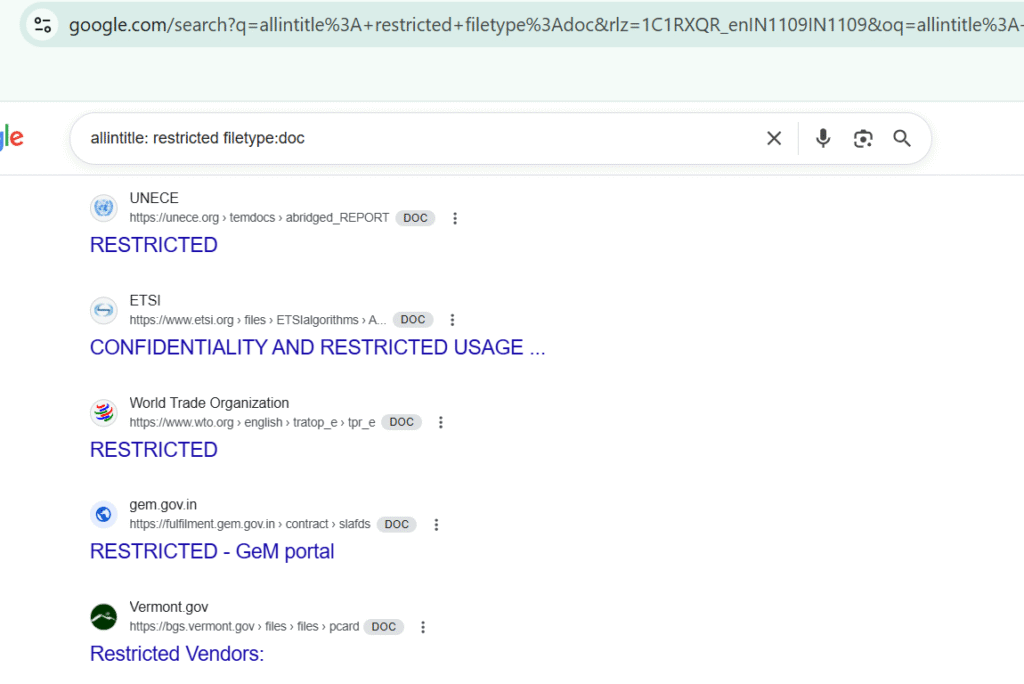
The search query “allintitle: restricted filetype:doc” combines two powerful Google search operators to find specific types of documents. Let me break down each component so you understand exactly what’s happening.
- allintitle: is a search operator that tells Google to find pages where ALL the words following the operator appear in the page title or document title. In this case, it’s looking for documents with “restricted” in their title. This is different from a regular search where Google looks for keywords anywhere on the page; allintitle: narrows results exclusively to titles.
- filetype:doc is another operator that filters results to show only specific file formats, in this case Microsoft Word DOC files. You can also use filetype:docx for newer Word formats, filetype:pdf for PDFs, filetype:xls for Excel spreadsheets, and many other extensions.
When combined, this search finds Word documents that have been titled with the word “restricted,” which often indicates confidential, internal, or sensitive materials. The search intent behind this query is typically one of three things: security researchers looking for exposed sensitive data, competitive intelligence professionals seeking insider information about organizations, or IT administrators trying to identify their own organization’s data leaks.
How to Use allintitle and filetype Operators in Google Search?
Using these search operators is straightforward, but there are specific syntax rules you need to follow for them to work properly.
Basic Syntax Rules
For allintitle:, there should be no space between the operator and your first keyword. Everything after allintitle: (until you use another operator) will be searched for in titles. For example:
allintitle: confidential report 2024finds pages with all those words in the titleallintitle:budget proposal(no space after colon) works the same way
For filetype:, place it anywhere in your query with the file extension immediately following. Examples:
- filetype:pdf annual report
- cybersecurity policy filetype:docx
- allintitle: internal memo filetype:doc
Safe and Ethical Usage Examples
Here are legitimate ways to use these operators:
- For SEO audits:
site:yourcompany.com filetype:pdfchecks what PDFs from your own site are indexed - For competitive research:
allintitle: competitor analysis filetype:pptxfinds publicly available presentation files about market competitors - For academic research:
allintitle: research methodology filetype:doc site:edulocates educational resources - For content discovery:
filetype:xlsx "marketing budget" site:govfinds government datasets that are intentionally public
The key is using these operators on information that’s either your own, publicly intended, or for legitimate research purposes.
Also know: What Does https www google com search client ms opera mini Mean?
When to Use Search Operators for Research or SEO Audits?
Understanding when to deploy these advanced search techniques can dramatically improve your workflow efficiency and competitive intelligence gathering.
SEO Audit Scenarios
- Indexation audits: Use site:yourdomain.com filetype:pdf to discover all PDF files from your site that Google has indexed. You might find outdated documents, duplicates, or files that should have been noindexed but weren’t.
- Competitor content analysis: Search allintitle: [competitor name] strategy filetype:pptx to find publicly shared presentations from conferences or investor meetings that reveal strategic direction.
- Link building opportunities: Query allintitle: guest post guidelines filetype:pdf to locate documented submission requirements for guest blogging opportunities.
OSINT and Security Research
Security professionals use these operators to identify data leaks and exposed sensitive information. Queries like allintitle: confidential filetype:doc site:company.com help organizations discover their own accidentally exposed documents before malicious actors find them.
Digital investigators use similar techniques for due diligence, compliance checks, and fraud investigation, always within legal and ethical boundaries.
Examples of Similar Search Queries
Once you understand the mechanics of combining allintitle: and filetype:, you can create dozens of targeted queries for different research needs.
Here are practical examples:
Finding confidential PDFs:
allintitle: confidential filetype:pdfLocating government restricted documents:
filetype:doc site:gov restrictedDiscovering internal company memos:
allintitle: internal memo filetype:docxSearching for private presentations:
allintitle: private filetype:pptxFinding budget documents:
allintitle: budget confidential filetype:xlsxLocating employee handbooks:
allintitle: employee handbook filetype:pdf site:eduDiscovering policy documents:
filetype:doc "company policy" -public
You can also combine multiple operators: allintitle: strategic plan filetype:pdf site:*.edu -admissions finds strategic planning documents from educational institutions while excluding admissions materials.
Know about: https:// docs.google.com/spreadsheets/pii_deleted
Why You May Find “Restricted” Documents Indexed?
It seems counterintuitive that documents labeled “restricted,” “confidential,” or “internal” would appear in Google search results, yet it happens constantly. Understanding why helps both researchers find information and organizations protect their assets.
- Misconfigured web servers are the most common culprit. When document directories lack proper access controls or index listings are enabled, search engine crawlers can discover and index everything in those folders. A single misconfigured AWS S3 bucket or improperly secured SharePoint site can expose thousands of documents.
- Poor document management practices contribute significantly. Employees upload sensitive files to public-facing websites, cloud storage with public sharing links, or collaborative platforms without proper permission settings. Someone might share a “restricted” document via a public Dropbox link that Google subsequently crawls and indexes.
- Legacy content that wasn’t properly removed haunts many organizations. Documents uploaded years ago when security practices were lax remain indexed even after the original pages are gone, surviving in Google’s cache or on archive sites.
- Lack of robots.txt directives and meta tags means Google has no instruction to avoid indexing certain file types or directories. Without explicit <meta name=”robots” content=”noindex”> tags or robots.txt rules blocking specific paths, crawlers will index whatever they find.
- Third-party leaks occur when contractors, partners, or former employees retain and inadvertently expose documents they shouldn’t have access to anymore. A consultant might upload a client’s strategic plan to their portfolio site, or a former employee might keep work documents in personal cloud storage with public links.
The reality is that adding “restricted” or “confidential” to a document title provides zero technical protection. It’s merely a label that ironically makes these documents easier to find using search operators.
How to Protect Your Own Documents from Being Indexed?
Prevention is far easier than remediation when it comes to protecting sensitive documents from search engine indexing. Here are actionable steps every organization should implement.
Technical Protections
Use robots.txt to block file types: Add these lines to your robots.txt file:
User-agent: *
Disallow: /*.doc$
Disallow: /*.docx$
Disallow: /*.pdf$
Disallow: /*.xls$
Disallow: /*.xlsx$
This tells search engines not to crawl documents with these extensions across your entire site.
Implement password protection: Require authentication before documents can be accessed. Files behind login walls won’t be indexed by search engines.
Use noindex meta tags: For HTML pages linking to sensitive documents, add <meta name=”robots” content=”noindex, nofollow“> to prevent indexing and link following.
Configure proper server permissions: Ensure document directories have appropriate access controls at the server level. Disable directory listing to prevent crawlers from discovering files.
Best Practices for Document Management
- Never upload truly sensitive documents to public web servers. Use internal file servers, properly configured SharePoint sites with restricted access, or encrypted cloud storage with strict permission controls.
- Audit existing indexed content regularly. Perform searches like site:yourcompany.com filetype:doc restricted monthly to identify accidentally exposed files.
- Educate employees about the risks of public file sharing. Many data leaks occur simply because someone didn’t realize a Dropbox link or Google Drive share was set to “anyone with the link.”
- Use Google Search Console to monitor what’s being indexed and submit removal requests for sensitive content that shouldn’t be public.
Emergency Removal Process
If you discover sensitive documents already indexed:
- Remove or password-protect the source file immediately
- Submit an urgent removal request via Google Search Console
- Use the Remove Outdated Content tool to expedite removal from search results
- Add proper robots.txt rules to prevent re-indexing
- Monitor for the document on other search engines like Bing and submit removal requests there too
Remember that removal from search results doesn’t mean the document wasn’t already accessed or downloaded. Once exposed, sensitive information may have been captured by web archives or malicious actors.
Also know: What is Google Gravity
FAQ: Common Questions About allintitle: restricted filetype:doc
What does “allintitle: restricted filetype:doc” mean?
This Google search query combines two operators: allintitle: searches for pages with all specified words in the title, while filetype:doc filters results to show only Microsoft Word DOC files. Together, they find Word documents with “restricted” in their titles.
How do I search only DOC files in Google?
Use the filetype:doc operator in your search query. For example, project plan filetype:doc returns only DOC files containing those keywords. You can combine this with other operators for more precise results.
Are restricted files allowed to appear in Google results?
Yes, if they’re accessible without authentication and not blocked by robots.txt or noindex directives. The word “restricted” in a title provides no technical protection; it’s just a label that makes these documents easier to find using search operators.
How can I remove my restricted DOC files from Google?
First, remove the file from your server or add password protection. Then submit a removal request through Google Search Console using the Removals tool. Add appropriate robots.txt rules to prevent re-indexing. The process typically takes 24-48 hours.
What is the best way to use allintitle for SEO?
Use allintitle: to analyze competition by finding pages targeting specific keywords in titles, audit your own site’s title tag usage, discover link building opportunities, and identify content gaps where competitors lack optimized titles for valuable search terms.
Can Google operators help in competitive research?
Absolutely. Operators like allintitle:, site:, filetype:, and inurl: help you discover competitor content strategies, find publicly available business documents, identify their indexed pages, analyze their content structure, and uncover opportunities they may have missed.
Disclaimer: This article is for educational and legitimate research purposes only. Always respect privacy, comply with applicable laws, and use search operators ethically. Unauthorized access to restricted systems or documents may violate computer fraud laws.
Comments
0 comments