content://cz.mobilesoft.appblock.fileprovider/cache/blank.html – What It Means & How to Fix It

Last Updated on November 24, 2025 by Prabhakar A
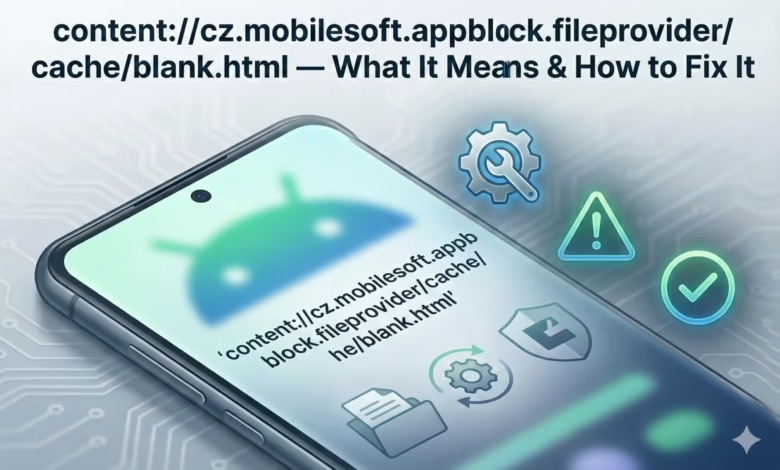
Ever opened your browser or notification only to see a strange URI like content://cz.mobilesoft.appblock.fileprovider/cache/blank.html staring back at you? Maybe it appeared when trying to visit a website, or your browser tried loading it automatically, leaving you confused and concerned.
Don’t panic. This cryptic string isn’t a virus, malware, or evidence of hacking. It’s actually a normal part of how Android apps like AppBlock manage their internal operations. However, seeing it repeatedly or unexpectedly can indicate minor technical issues worth addressing.
This comprehensive guide explains exactly what this content cz mobilesoft appblock fileprovider cache blank html URI means, why it appears, whether it poses security risks, and most importantly, how to fix it if it’s causing problems. By the end, you’ll understand Android’s content URI system and know exactly how to troubleshoot AppBlock-related issues.
Table of Contents
What is content cz mobilesoft appblock fileprovider cache blank html
Let’s decode this technical-looking string piece by piece.
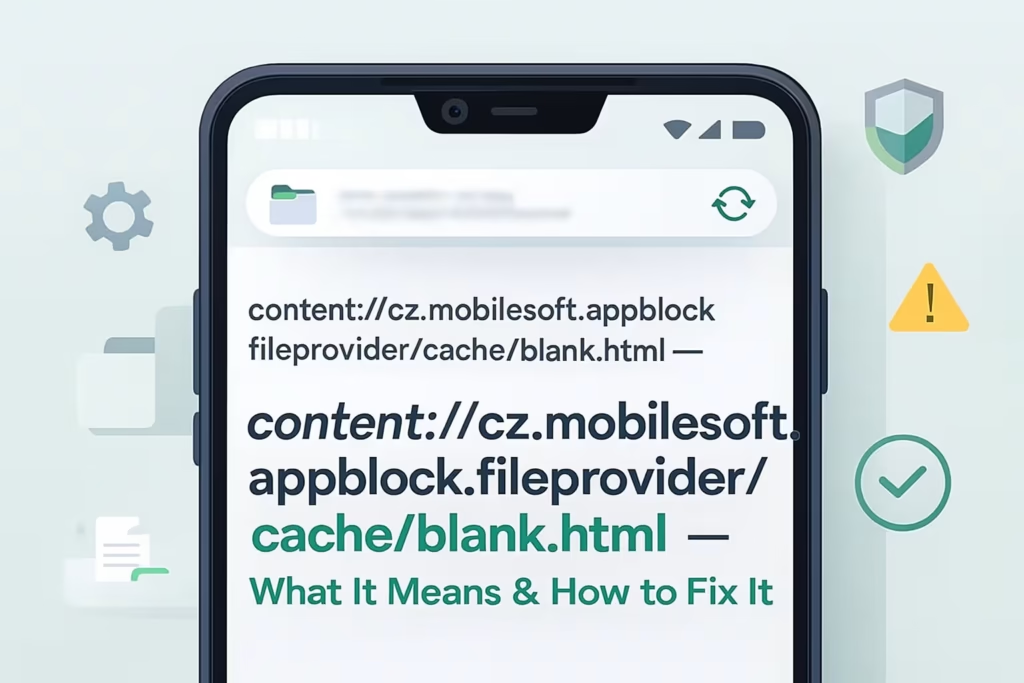
content:// indicates this is a content URI, Android’s secure method for apps to access and share data. Unlike traditional file:// paths that expose actual file system locations, content URIs provide controlled, permission-based access to resources. The Android ContentResolver system manages these URIs, ensuring apps can’t access files they shouldn’t.
cz.mobilesoft.appblock.fileprovider represents the authority, essentially the unique identifier for AppBlock’s FileProvider component. FileProvider is a specialized Android component that generates secure content URIs for files stored within an app’s private directories. The “cz.mobilesoft” portion is the company identifier (Czech company MobileSoft), “appblock” is the app name, and “fileprovider” indicates this specific component handles file sharing.
/cache/blank.html points to the actual file: a blank HTML document stored in AppBlock’s cache directory. This simple file serves as a placeholder or redirect target when AppBlock blocks websites or displays blocking messages.
Why does AppBlock use blank.html? When productivity apps like AppBlock block websites, they need to display something instead of the blocked content. Rather than showing error messages or crashes, AppBlock redirects your browser to this cached blank HTML file, providing a clean, controlled blocking experience. This approach is faster than network requests and maintains consistent user experience.
The FileProvider component ensures this internal file remains secure. Other apps can’t access AppBlock’s cache directly; they can only access files through properly authorized content URIs with granted permissions.
Do you know: https www google com search client ms opera mini
Why Does content://cz.mobilesoft.appblock.fileprovider/cache/blank.html Appear?
Understanding when and why this URI surfaces helps distinguish normal behavior from actual problems.
AppBlock generating temporary cached files
AppBlock creates blank.html in its cache directory as a lightweight placeholder for blocked content. When you try visiting a blocked website, AppBlock intercepts the request and redirects your browser to this cached file instead. The content URI provides secure access to this internal resource without exposing AppBlock’s file system structure.
This cached approach offers performance benefits by loading instantly from local storage rather than requiring network requests or complex rendering.
FileProvider linking to internal storage
FileProvider generates content URIs that grant temporary, limited access to files in AppBlock’s private storage. This security mechanism became mandatory starting with Android 7.0 (API 24), which blocks direct file:// URI sharing between apps to prevent security vulnerabilities.
When AppBlock needs to display blocked content messages or redirect browsers, FileProvider creates the content:// URI you see. This happens automatically as part of normal app operation.
Browser or system apps trying to open cached content
Sometimes browsers or Android’s WebView component attempt opening recently accessed URIs, including AppBlock’s content URIs. This can occur when restoring sessions, loading history, or refreshing tabs. Since these URIs point to AppBlock’s internal blank.html file, browsers may display the URI itself if they can’t properly resolve the content.
Notification systems, share menus, or clipboard managers might also display these URIs if they were recently copied or accessed, making them appear more frequently than expected.
Also know: content://com.avast.android.mobilesecurity/temporaryNotifications
Is It Safe or a Virus?
Legitimate security concerns deserve clear answers.
This content URI is completely safe and not a virus. It’s standard Android app behavior, specifically how productivity and blocking apps like AppBlock manage their functionality. The URI represents normal file access within Android’s secure content provider system.
Why it’s safe:
- AppBlock is a legitimate productivity app with millions of downloads from Google Play Store
- Content URIs are Android’s recommended secure file sharing mechanism
- The blank.html file contains no executable code, just simple HTML
- FileProvider restricts access to only authorized components
- No personal data exposure occurs through this cached file
When it might appear suspicious:
If you don’t have AppBlock installed but see this URI, that warrants investigation. However, even then, it likely indicates AppBlock was previously installed and left cached data behind rather than malicious activity. If you’ve never installed AppBlock and this URI appears frequently, run a security scan with reputable antivirus software as a precaution, though genuine threats using this specific URI are extremely rare.
The URI appearing occasionally during normal AppBlock usage is completely expected behavior requiring no concern.
Common Situations When You See content cz mobilesoft appblock fileprovider cache blank html URI
Recognizing typical scenarios helps determine whether behavior is normal or problematic.
While opening blocked sites
The most common scenario: you try visiting a website you’ve added to AppBlock’s blocklist. Instead of loading the site, your browser redirects to content://cz.mobilesoft.appblock.fileprovider/cache/blank.html, effectively blocking access. This is AppBlock working exactly as intended.
During app restrictions or focus mode
When AppBlock’s focus mode or scheduled restrictions activate, it may preemptively redirect browsers to the blank.html file to prevent distraction-prone browsing. During these periods, seeing the URI is expected behavior indicating active restrictions.
After clearing cache or app data
Clearing your device’s cache or AppBlock’s specific data can cause temporary issues where the app recreates necessary files. During this regeneration process, browsers might briefly display the content URI before AppBlock properly reconfigures its blocking mechanisms.
When AppBlock misbehaves after updates
App updates occasionally introduce temporary bugs or compatibility issues. After updating AppBlock, the content URI might appear unexpectedly in notifications, browser tabs, or system menus due to configuration changes or permission adjustments needed for the new version.
Know more: docs.google.com/spreadsheets/pii_deleted
How to Fix content://cz.mobilesoft.appblock.fileprovider/cache/blank.html
If the URI appears disruptively or prevents normal browsing, these solutions typically resolve issues.
Clear AppBlock cache
The quickest, least disruptive fix:
- Open Settings on your Android device
- Navigate to Apps or Application Manager
- Find and select AppBlock from the list
- Tap Storage or Storage & cache
- Select Clear Cache (not Clear Data, which removes settings)
This removes temporary files including blank.html without uninstalling the app or losing your configurations. AppBlock recreates necessary cache files automatically during next use.
Reinstall AppBlock
If clearing cache doesn’t resolve issues:
- Uninstall AppBlock through Settings > Apps > AppBlock > Uninstall
- Restart your device to ensure complete removal
- Reinstall AppBlock from Google Play Store
- Reconfigure your blocking settings and schedules
Fresh installation eliminates corrupted files or configuration issues causing unexpected URI appearances.
Reset FileProvider permissions
Permission issues sometimes cause FileProvider problems:
- Go to Settings > Apps > AppBlock > Permissions
- Review granted permissions, particularly storage access
- Toggle permissions off, then back on to reset
- Restart AppBlock and test functionality
Update or downgrade AppBlock
Version-specific bugs occasionally cause issues:
- Update: Check Google Play Store for AppBlock updates addressing known bugs
- Downgrade: If problems started after updating, uninstall current version and install previous stable version from trusted APK sources (use caution and only download from reputable sites)
Disable content URL previews in browsers
Prevent browsers from displaying content URIs:
- Open your browser’s Settings
- Find Privacy or Advanced settings
- Disable URL preview, link preview, or similar features
- Clear browser cache and restart
This stops browsers from attempting to display or preview content URIs they can’t properly resolve.
Advanced Troubleshooting (If the Issue Persists)
Reset Android System WebView
WebView renders web content within apps. Resetting it can resolve URI display issues:
- Open Settings > Apps
- Tap the three-dot menu and select Show system apps
- Find Android System WebView
- Tap Storage > Clear cache and Clear data
- Restart your device
Clear browser cache
Browser cache corruption can cause persistent URI display:
- Open your browser (Chrome, Firefox, Samsung Internet, etc.)
- Go to Settings > Privacy > Clear browsing data
- Select Cached images and files
- Clear data and restart browser
Check for corrupted cache folders
Using file manager apps with root access (advanced users only):
- Navigate to /data/data/cz.mobilesoft.appblock/cache/
- Delete blank.html or entire cache folder
- Restart AppBlock to regenerate clean cache
Warning: Only attempt this if comfortable with file system navigation. Improper changes can cause app instability.
Check for conflicts with focus-mode or productivity apps
Multiple productivity apps running simultaneously can conflict:
- Temporarily disable other blocking apps (Forest, StayFocusd, Digital Wellbeing)
- Test whether AppBlock’s content URI issues persist
- If resolved, configure apps to avoid overlapping restrictions
Is It Safe to Delete AppBlock Cache Files?
Yes, it’s completely safe to delete AppBlock’s cache files through Android’s settings interface. Cache contains temporary data that apps recreate as needed. Deleting cache doesn’t remove:
- Your blocking configurations
- Scheduled restrictions
- App preferences or settings
- Usage statistics
Cache deletion only removes temporary files like blank.html, which AppBlock regenerates automatically when required for blocking functionality.
What’s unsafe: Manually deleting AppBlock’s entire data folder (not cache) through root access or system file managers can corrupt the app and erase all settings, requiring complete reconfiguration.
Stick to the standard Settings > Apps > AppBlock > Storage > Clear Cache method, which safely removes temporary files without affecting functionality.
Preventing the Issue from Returning
Regular app maintenance
Periodically clear AppBlock’s cache (monthly) to prevent buildup of outdated temporary files. Keep the app updated to benefit from bug fixes and performance improvements.
Avoid aggressive cache cleaners
Third-party cache cleaner apps sometimes delete files apps need for proper operation. While they claim to boost performance, they often cause more problems than they solve. Android’s built-in storage management handles cache maintenance effectively without aggressive third-party tools.
Adjust AppBlock settings
Configure AppBlock to minimize disruptive behavior:
- Review blocked site lists and remove unnecessary entries
- Adjust notification settings to reduce unwanted alerts
- Configure browser integration settings for smoother redirection
Give/revoke specific permissions intentionally
Grant AppBlock only necessary permissions. Review permissions periodically and revoke any that seem excessive for your use case. However, storage access is typically required for FileProvider functionality, so revoking it may cause issues.
Related Blogs:
a&ta
Video&a
Search Google or Type a URL
Conclusion
The content://cz.mobilesoft.appblock.fileprovider/cache/blank.html URI represents normal Android app behavior, not a security threat or virus. It’s simply how AppBlock manages website blocking through Android’s secure FileProvider system.
If the URI appears occasionally while using AppBlock’s blocking features, no action is needed. If it becomes disruptive or appears unexpectedly, clearing AppBlock’s cache resolves most issues. For persistent problems, reinstalling the app or resetting FileProvider permissions typically provides complete resolution.
Understanding Android’s content URI system helps distinguish normal app operations from genuine problems. In this case, what looks like cryptic technical jargon is actually elegant security design protecting your data while enabling app functionality. Stay focused, keep blocking distractions, and don’t worry about that harmless blank.html file doing its job.
Common FAQ’s
Why does this content cz mobilesoft appblock fileprovider cache blank html open by itself?
The URI typically appears when AppBlock blocks websites or when browsers attempt restoring sessions containing blocked content. It’s usually triggered by your browsing activity interacting with AppBlock’s restrictions, not spontaneous behavior.
Can I uninstall AppBlock to fix this?
Yes. Uninstalling AppBlock permanently removes the content URI issue since the app generating it no longer exists. However, you’ll lose blocking functionality. If you still need website blocking, consider clearing cache first before uninstalling.
Why is blank.html created?
blank.html serves as a lightweight placeholder for blocked content. It’s faster than loading error pages from servers and provides consistent user experience when AppBlock enforces restrictions. Many productivity apps use similar cached placeholder files.
Does FileProvider expose personal data?
No. FileProvider specifically protects personal data by granting limited, temporary access to only specified files. Other apps can’t browse AppBlock’s entire file system or access sensitive information. The blank.html file itself contains no personal data.
What if the URI appears without AppBlock installed?
This likely means AppBlock was previously installed and left cached data behind. Clear system cache through Settings > Storage > Cached data > Clear cache. If it persists and you’ve never installed AppBlock, run security scans as a precaution, though genuine threats are extremely unlikely.
Comments
0 comments


![How To Fix [pii_email_9adeb2eb81f173c673a5] Error Code?](https://www.trainingsadda.in/wp-content/uploads/2020/10/How-to-fix-pii_email_9adeb2eb81f173c673a5-Error-Code-390x220.png)